10.03 Keyframes
Keyframes describe an attribute at a specific point in time. That attribute could be position, scale, rotation, opacity, color or many other parameters.
A single keyframe by itself does not create visible motion or change, nothing happens. Change or animation happens if a second keyframe is set at a different point in time and has a different value for that same attribute as the first keyframe. , then software can “tween” or animate the transition from one keyframe value to another by interpolation between the keyframe values.
How far apart the keyframes are on the timeline determines the speed of the change. If two keyframes are close together, the change happens quickly. If they are farther apart, the change happens more slowly. The way that motion progresses between keyframes is determined by the interpolation type.
Keyframe Interpolation
Interpolation describes how animation moves from one keyframe to the next. Different interpolation types change the feeling of motion and can make an animation appear mechanical, smooth, abrupt, or more natural.
- Step or Hold
- Linear
- Ease In
- Ease Out
- Bezier
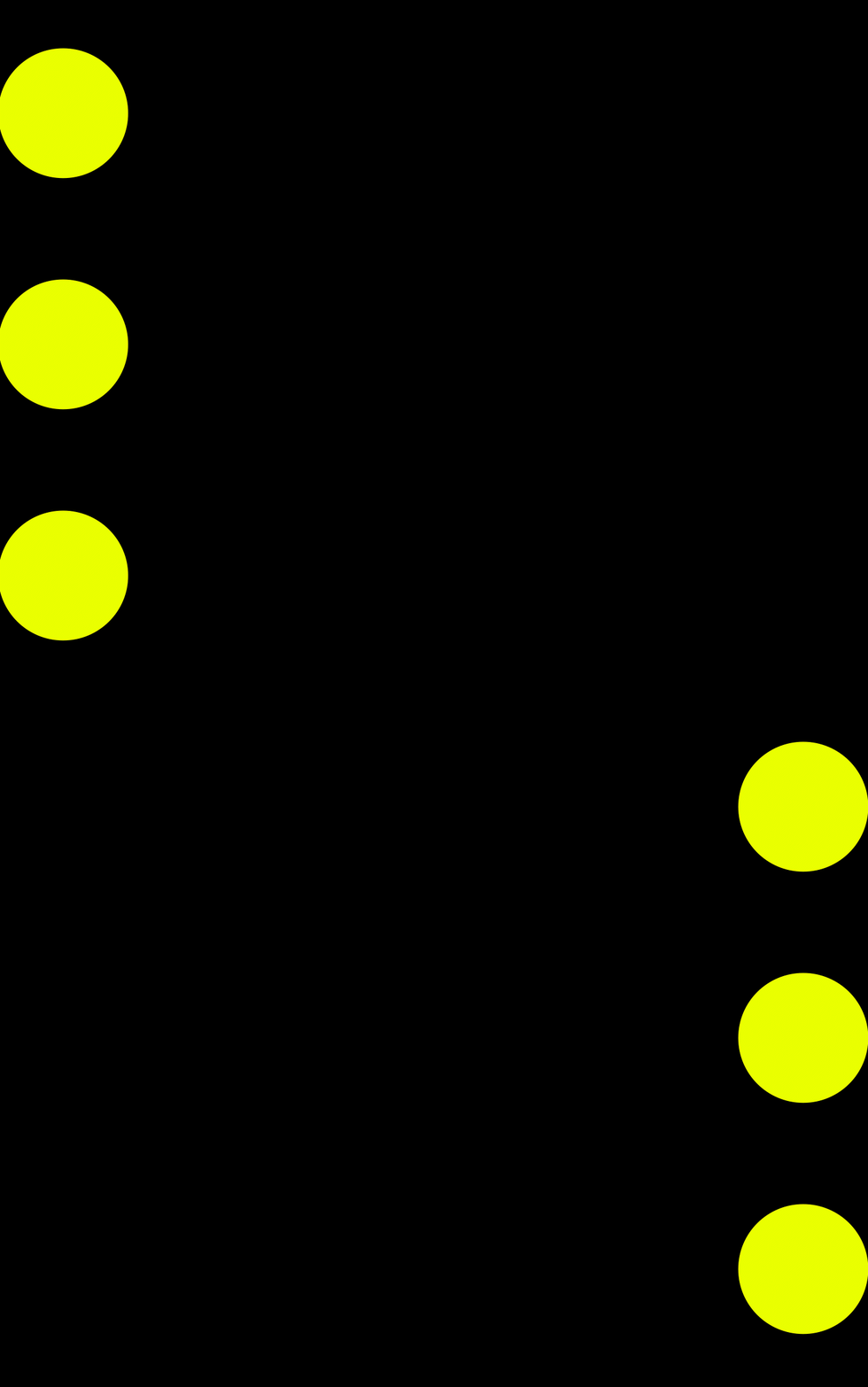
Step or Hold Keyframes
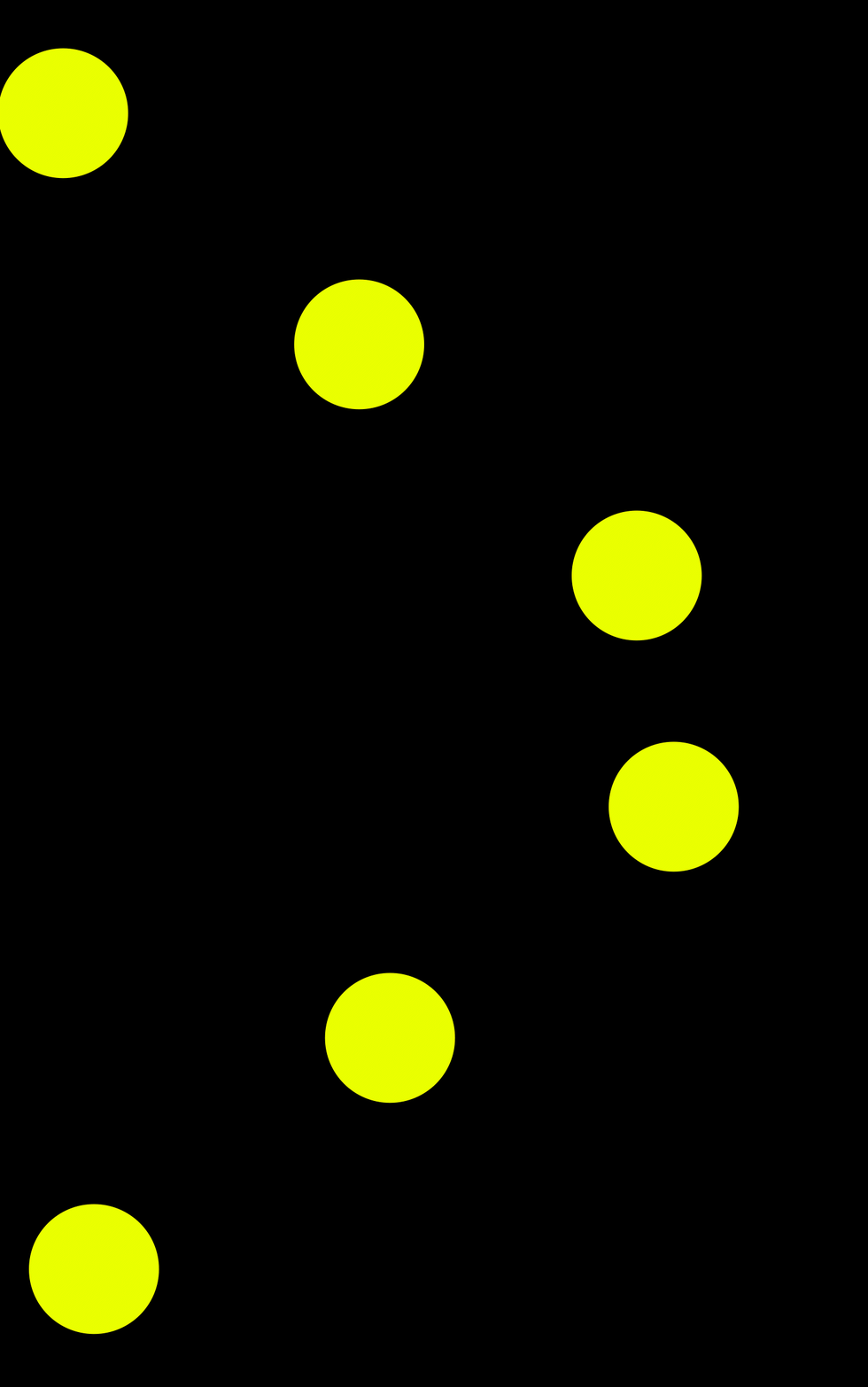
Linear Key Frames
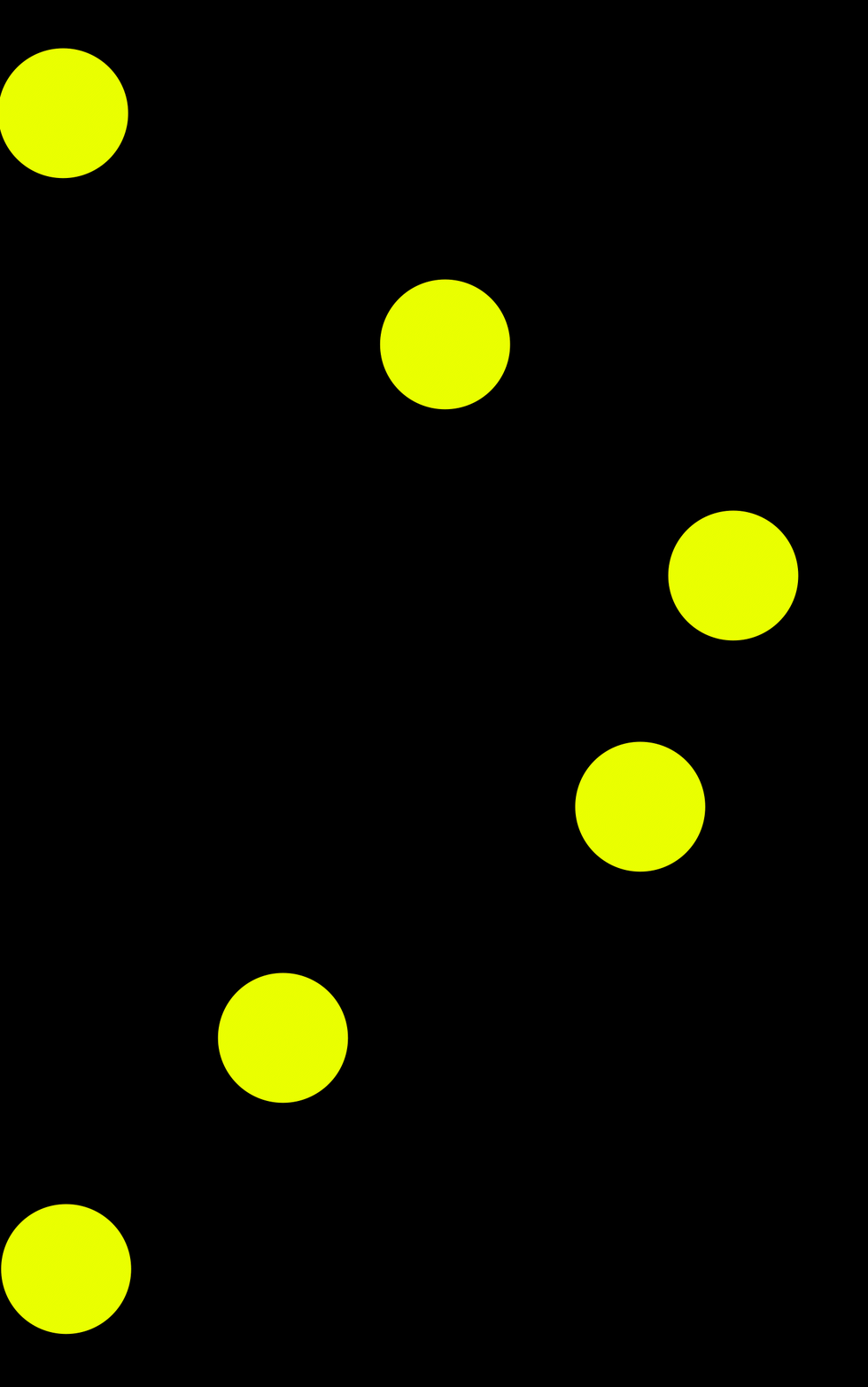
All Ease In Key Frames
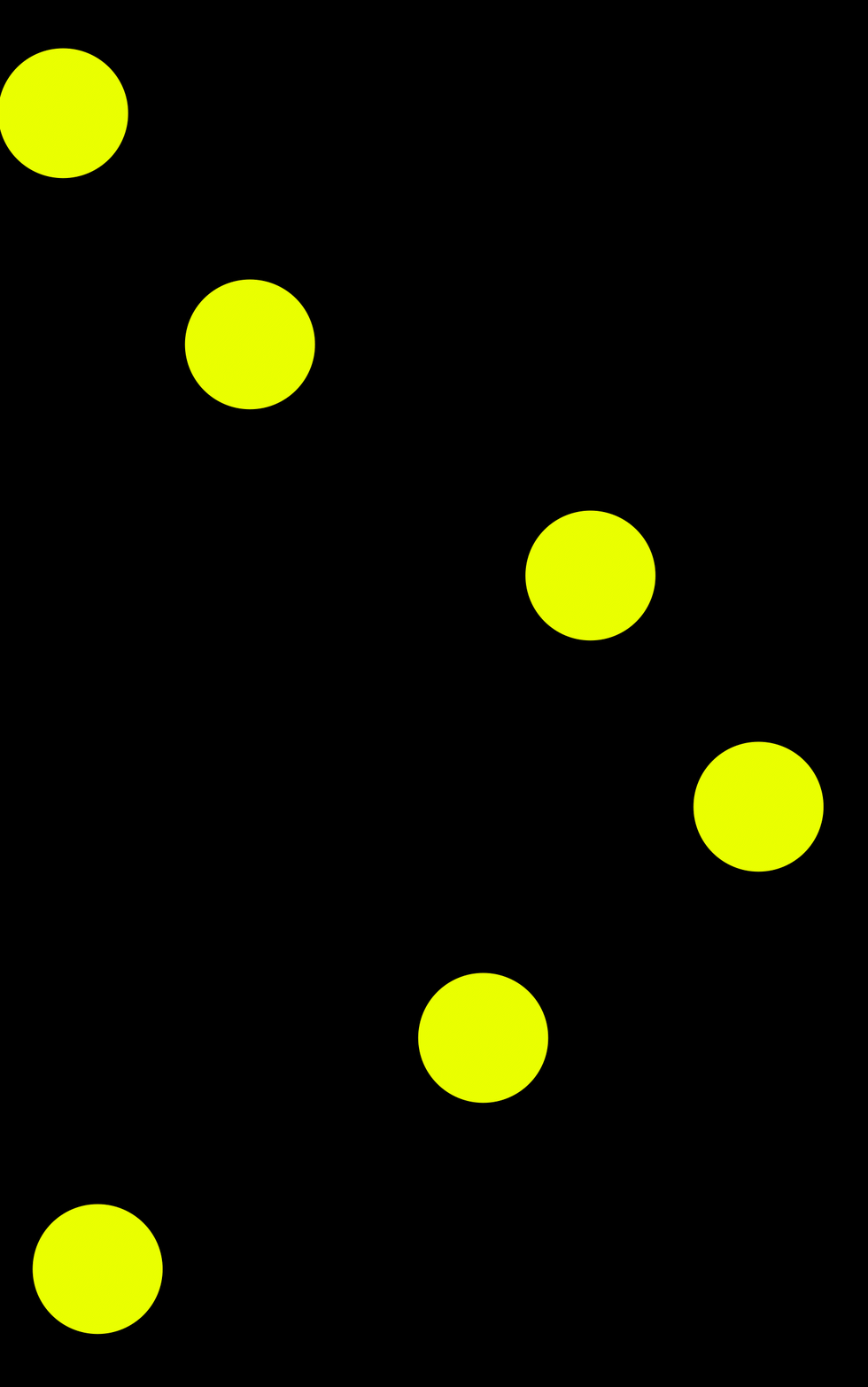
All Ease Out Key Frames
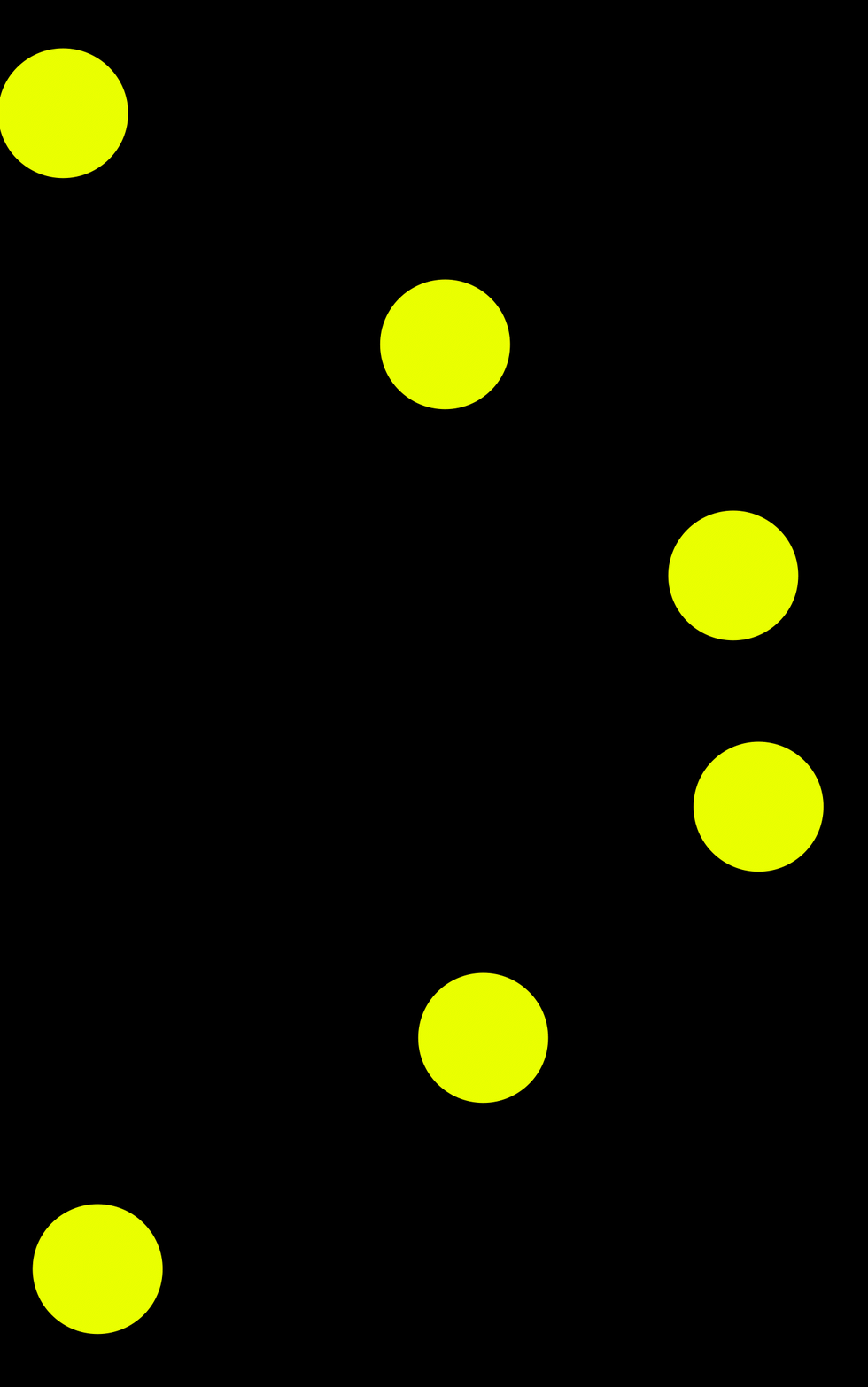
Ease In then Ease Out Key Frames
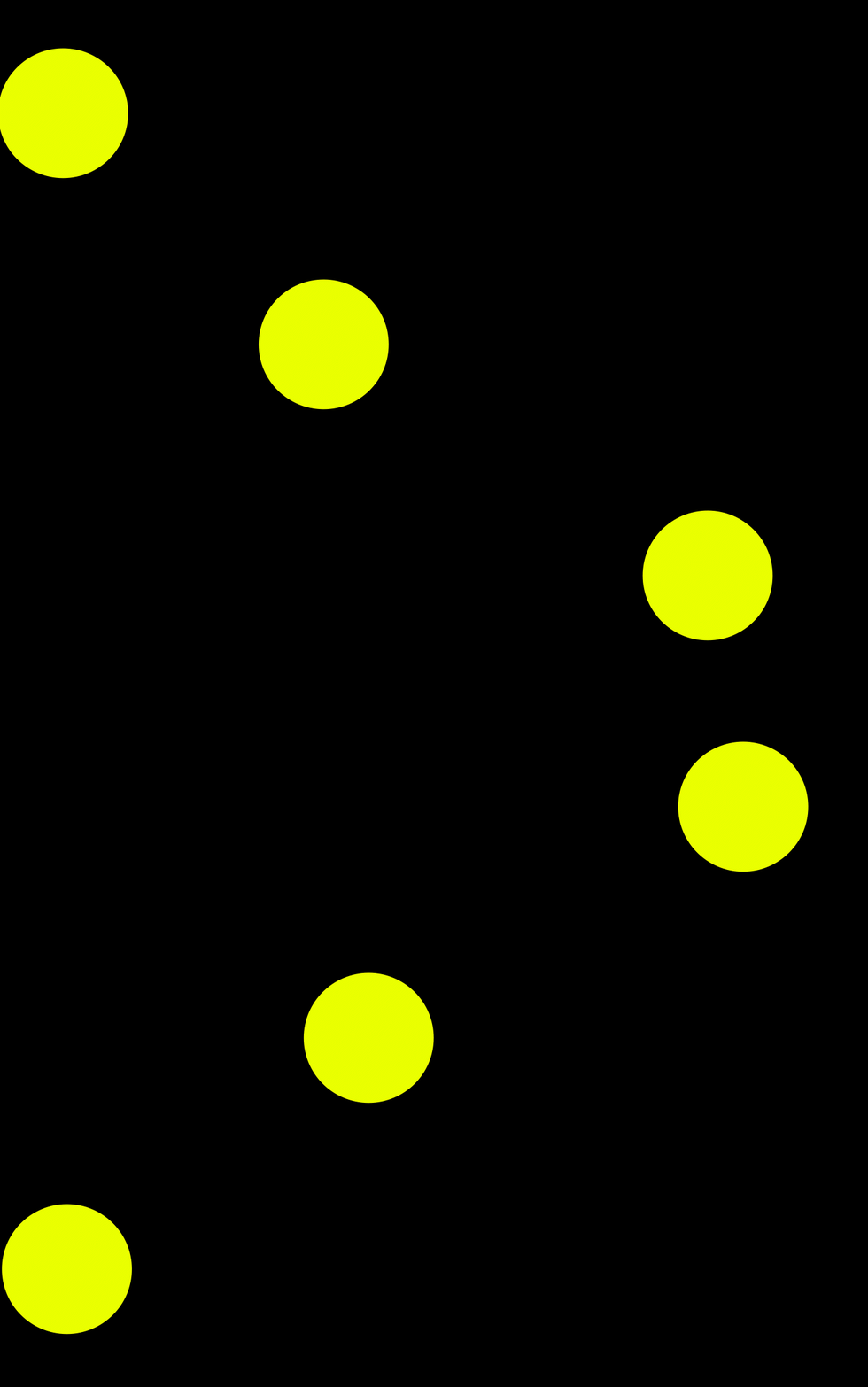
Ease Out then Ease In Key Frames
Keyframe Graph Editor
Graph editors in programs like After Effects, Maya, Blender and other animation and motion graphics software, allow you to fin tune the interpolation of keyframes. On a standard timeline you can change the frame of the keyframe and its basic interpolation but with the graph editor more complex interpolations, including “overshooting” the keyframe value are possible.
In the graphs the X axis show time and the Y axis shows the value of the parameter being animated.
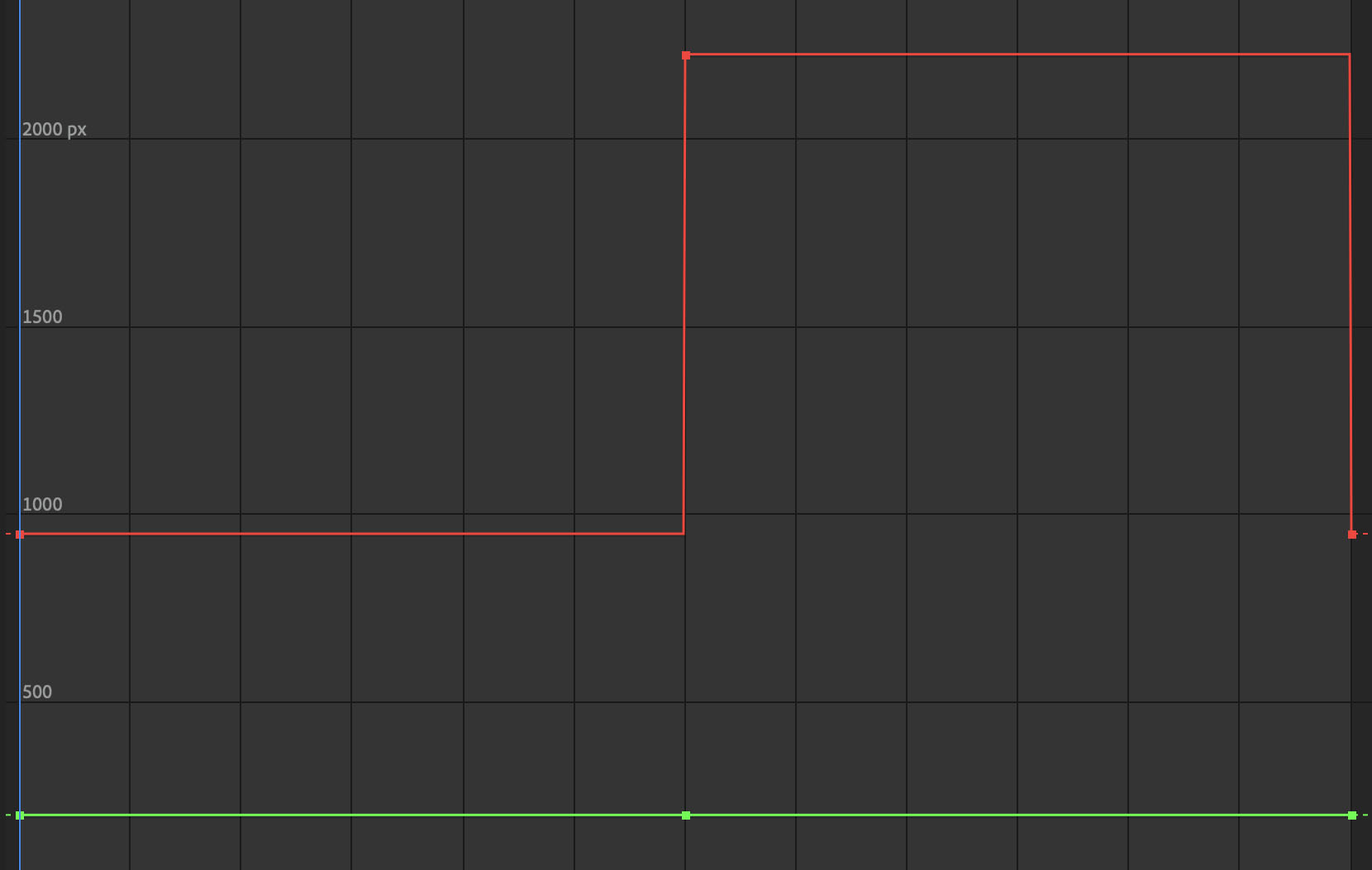
Hold Keyframe Graph
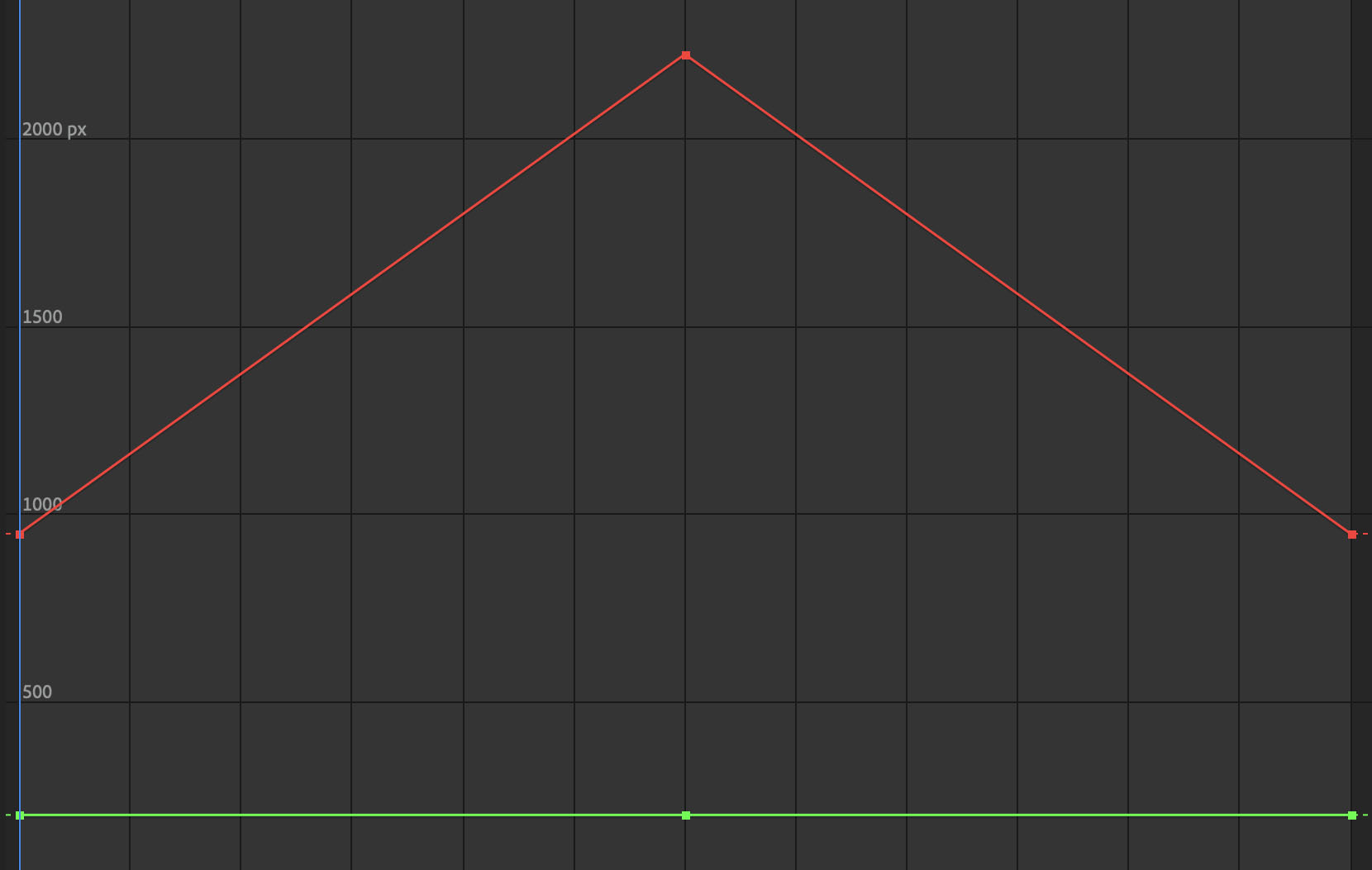
Linear Keyframe Graph
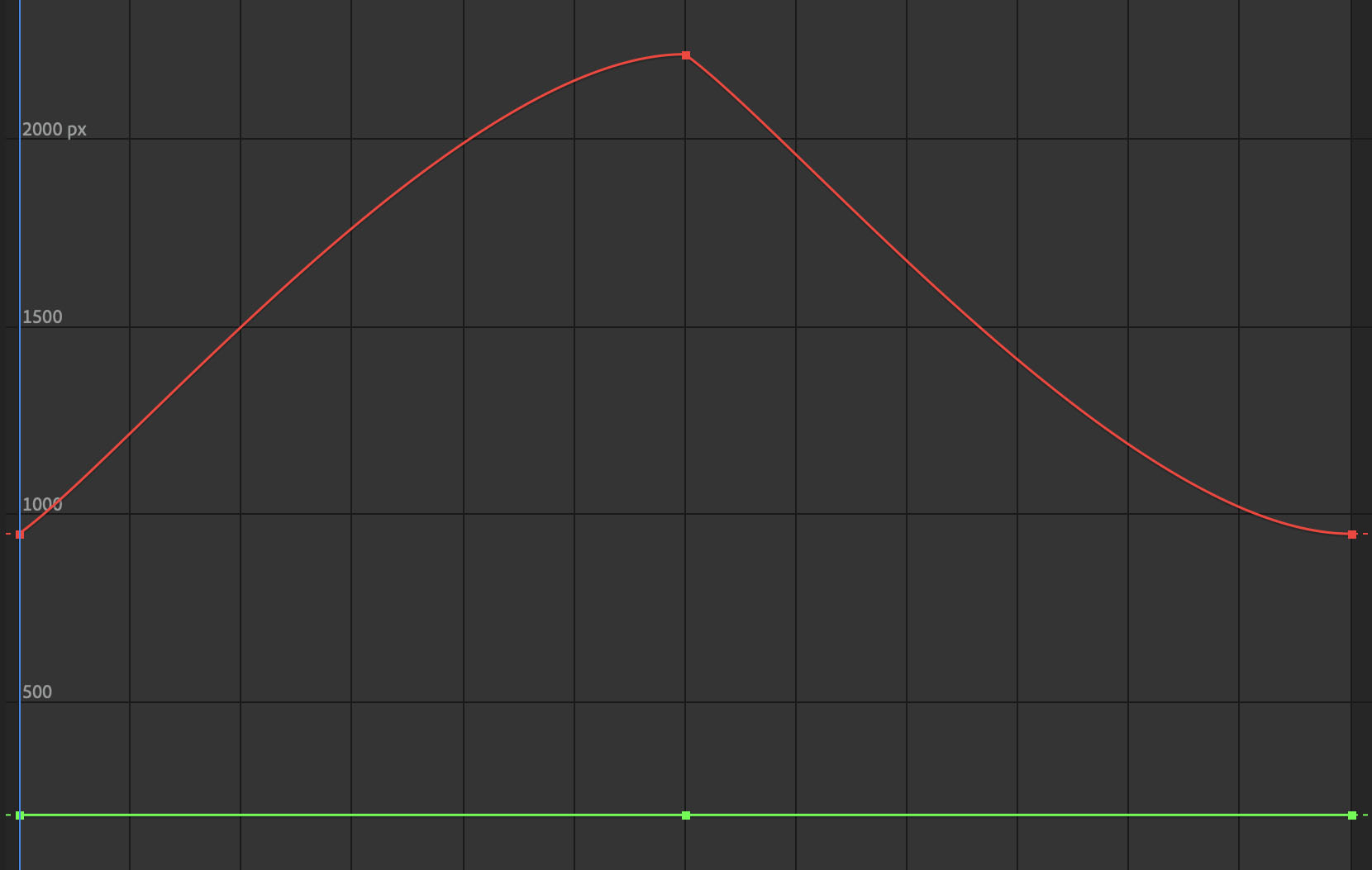
All Ease In Keyframe Graph
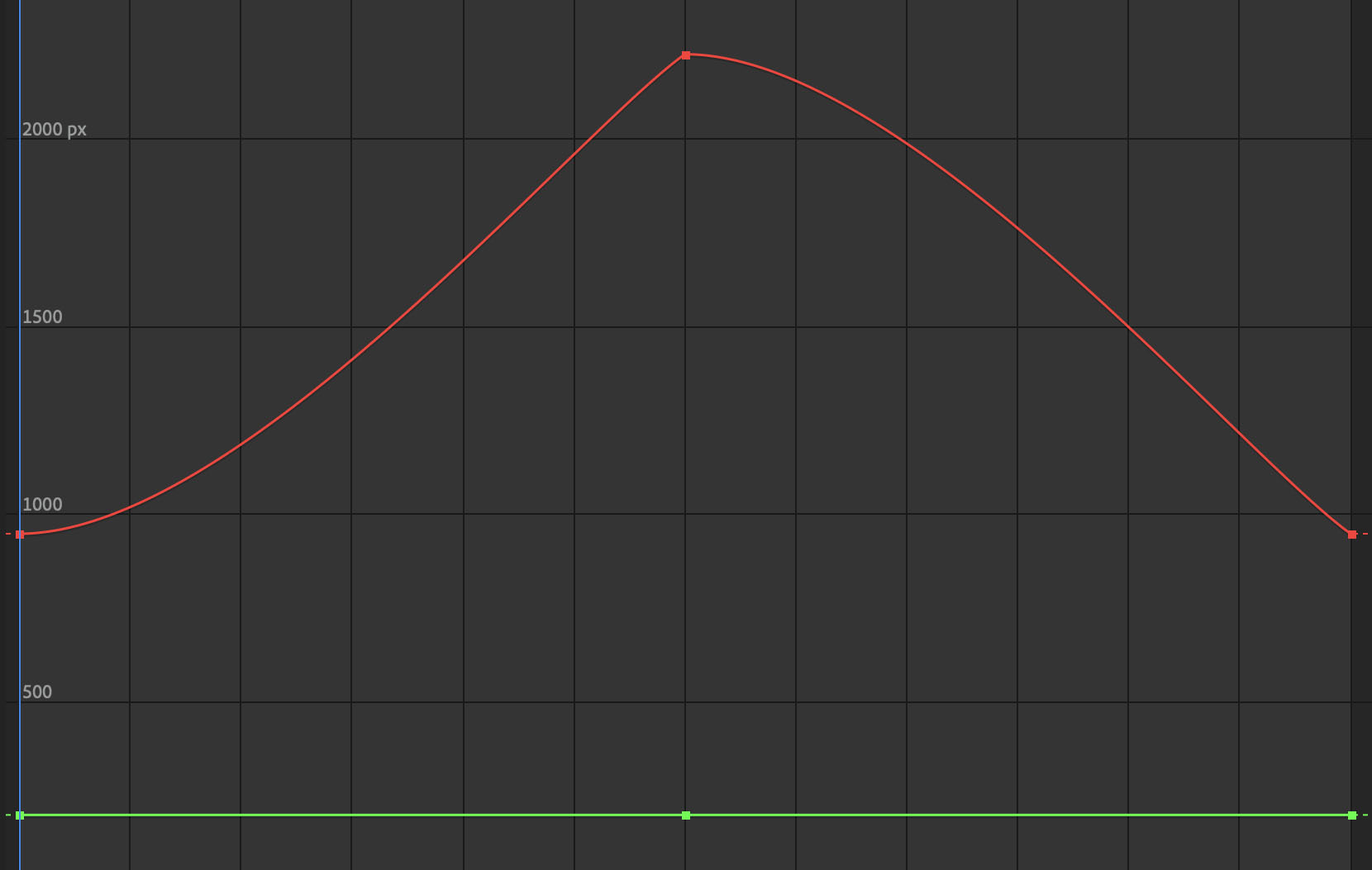
All Ease Out Keyframe Graph
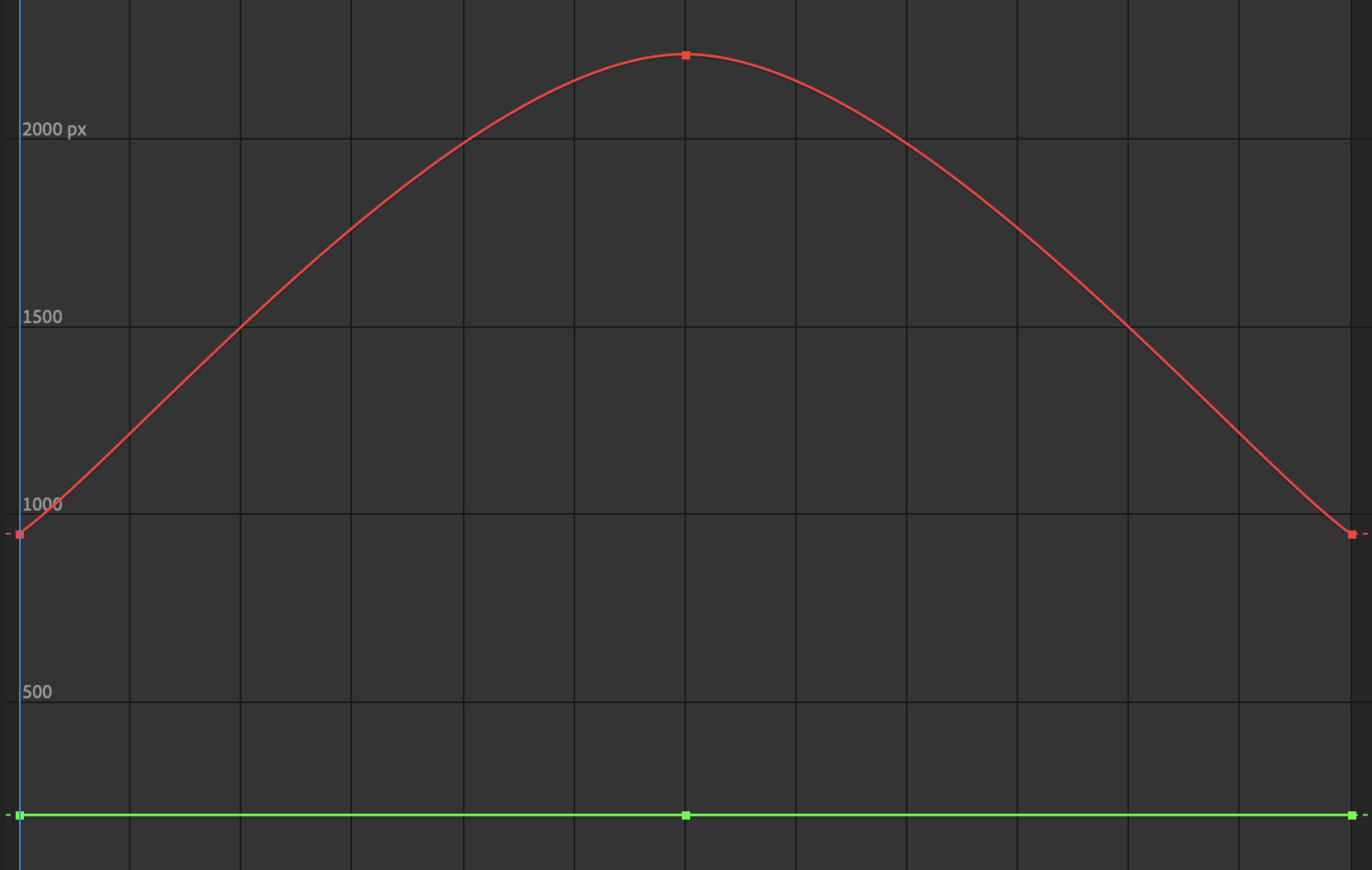
Ease In then Ease Out Keyframe Graph
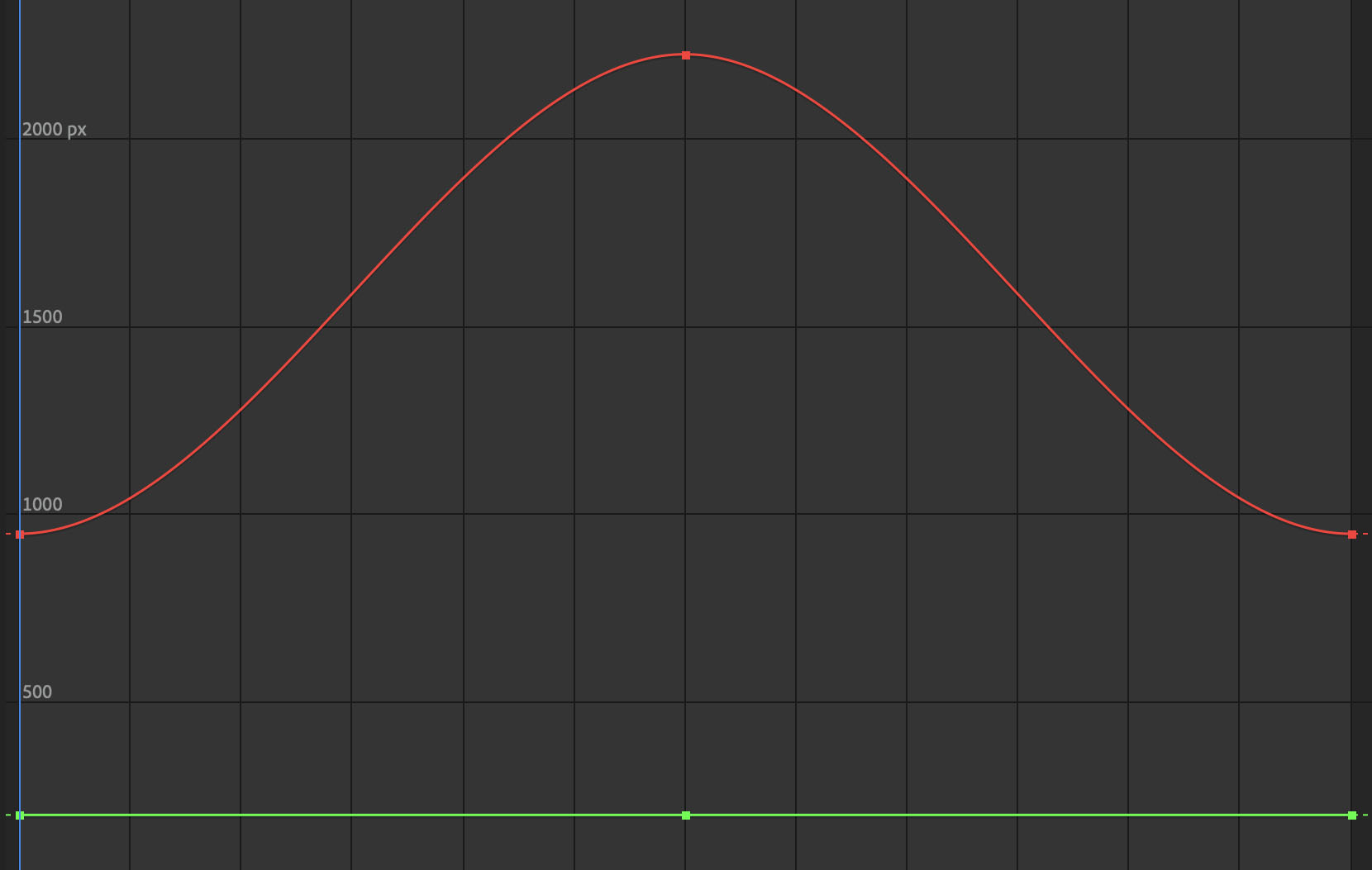
Ease Out thn Ease In Keyframe Graph